
Editor and live preview
The World Note editor comes with live preview by default, rendering markdown syntax visually. Headings, bold, italic, lists, and quotes render as styled text while you write, and the raw markdown is revealed when your cursor enters them. Tables, code blocks, and images render as widgets.
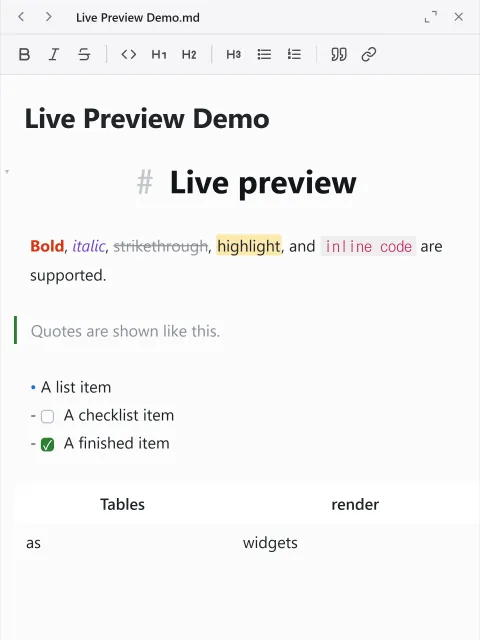
Formatting
Section titled “Formatting”Use the format toolbar and the right-click menu for bold, italic, headings, lists, quotes, and links.
On top of the common markdown styles used in tools such as Obsidian and GitHub (tables, task lists, strikethrough), the editor supports ==highlight==, #tags, callouts (> [!note]), footnotes [^1], collapsible blocks (<details>), and info boxes ([infobox]). Task-list boxes toggle on click, and headings can be folded.
Footnotes
Section titled “Footnotes”Write [^1] in the body and add a [^1]: text line near the bottom of the document to make a footnote. References render as superscript numbers, and clicking one jumps to its definition. Clicking the number on the definition jumps back to the first reference, and hovering over a reference previews the definition text.
The legendary sword Aurelis[^1] was found in the northern mountains.
[^1]: Believed to have been forged in the Third Dynasty.
Collapsible blocks
Section titled “Collapsible blocks”Use the <details> and <summary> tags to create a collapsible section. Put the opening and closing tags on their own lines and the summary line renders as a heading; clicking it folds and unfolds the body.
<details><summary>Spoiler</summary>
This content can be folded away.
</details>
Info boxes
Section titled “Info boxes”You can add a card that summarizes facts as rows, like the summary box on a wiki. Put [infobox] and [/infobox] on their own lines and write one entry per line between them.
[infobox]|+ Aurel Empire| Capital | Aurelia| Population | 50 million| Founded | 412, Third Dynasty[/infobox]| Line | What it does |
|---|---|
|+ title | The title at the top of the card. It is optional, and if written twice only the first is the title. |
| name | value | Makes one row from a name and a value. |
| text | Takes a whole line without splitting it into cells. |
A value may contain a vertical bar. Only the first two on a line are read as cell separators, and the rest belongs to the value.
To edit a card, click any of its rows. The caret lands on that row and the source appears; move the caret away and it returns to a card.
Info boxes are a World Note extension. Opening the file in another markdown editor shows the lines you wrote as plain text instead of a card, and nothing is lost.
Images
Section titled “Images”Paste or drop an image and it is attached to the project automatically. Both standard  and Obsidian embeds ![[name|size]] render, and local and relative paths are resolved within the project.
Where attached images are saved is set in the Current Map tab of Settings.