Paint terrain by hand
In Background edit mode, you can paint terrain directly with the Brush tool.
-
Select the Brush tool in Background edit mode.
-
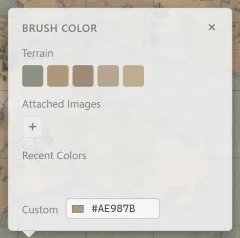
Pick what to paint from Brush color: a terrain swatch (water, grassland, forest, desert, snow), a recent color, a custom color, or an attached image.
-
Set the brush size, then drag on the canvas to paint.
Brush controls
Section titled “Brush controls”Click the color chip in the bottom options bar to open the Brush color popup.
| Element | What it does |
|---|---|
| Brush color | Terrain swatches paint that terrain type. Custom and recent colors paint the color as is. An attached image is used as a fill material. |
| Size | The brush thickness. Also adjustable with the [ and ] shortcuts. |
| Eyedropper | Picks up the terrain or color you click into the brush. Holding Alt and clicking does the same. |
| Paint bucket | Fills the connected area of the same color you click with the current material, in one go. |
| Erase | Erases painted terrain. |
The eyedropper picks up the terrain where you click if that spot holds a built-in or custom terrain, and the color where it holds anything else. Turned on with the button, it returns to the brush after one pick.
The paint bucket stays on, so you can fill several enclosed areas in a row. A fill spreads only as far as the color already there continues, and never past the edge of the map area. It is the quick way to fill a whole ocean.
Surface hotkeys (right panel)
Section titled “Surface hotkeys (right panel)”With the Brush tool selected, the right panel shows the surface hotkey list.
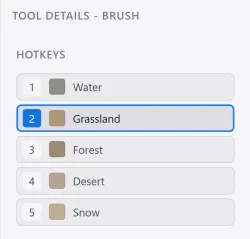
Click a slot to pick the surface to paint, or switch instantly with the number keys. Drag a slot onto another to swap the two hotkeys’ surfaces.
Surface colors (left panel)
Section titled “Surface colors (left panel)”The colors of the painted surfaces are managed in the Terrain section of the left panel.
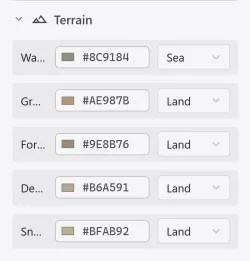
Each surface has a color and a blend mode. Changes apply to terrain you already painted, and are saved into style presets.
Custom terrain
Section titled “Custom terrain”You can add your own terrain types beyond the built-in surfaces. In the Custom Terrain area of the left panel’s Terrain section, press + Add to create a new terrain slot, then edit its name, color, and blend mode the same way as a built-in surface.
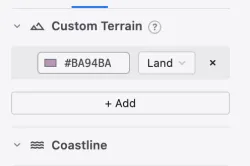
Custom terrains appear as a separate group in the brush color popup and in the right panel’s hotkey list. They can be picked by clicking, but no number key is assigned to them.
Custom terrains are not included in the terrain generator’s automatic generation. Deleting a slot keeps the color already painted with it on the map.
Terrain colors versus custom colors
Section titled “Terrain colors versus custom colors”Areas painted with a terrain swatch are recorded as a terrain type, not a color. So when you change the surface color settings or a style preset, they change along with it. Areas painted with a custom color or an attached image are separate from terrain types, so they stay as they are even when a style preset is applied.
The magic wand tool reads the terrain you painted. Lasso an area and a region is created along the coastline underneath. See Draw regions for the details.